
Instructions / Profile background
How to change your FACEIT background
Pick a background from the library or upload your own image using FACEIT Absolute.
For desktop browsers · Chrome and Firefox
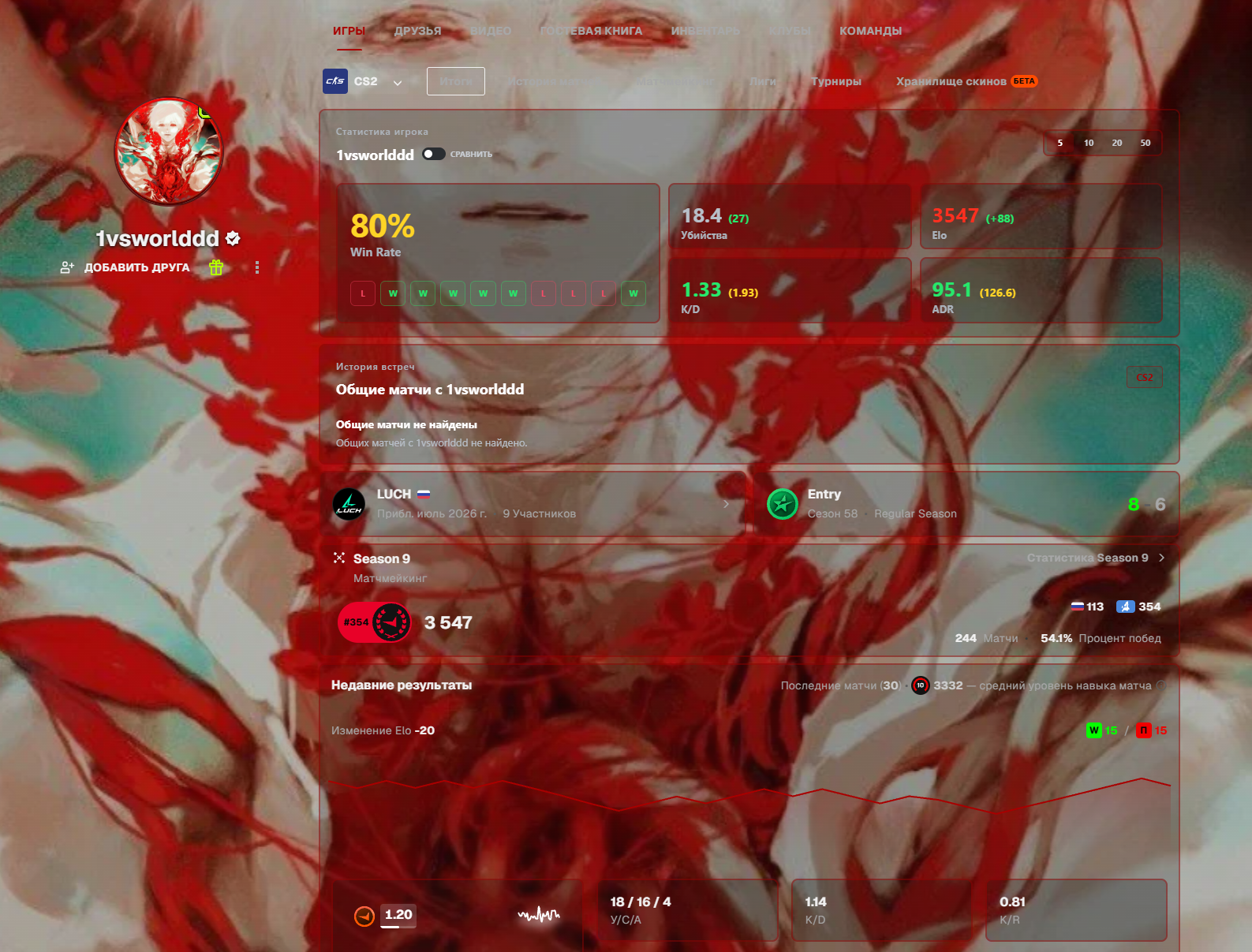
01 / The extension
Install FACEIT Absolute
Open the listing for your browser and confirm installation. Then open your FACEIT profile. Refresh the tab if it was already open.
For manual installation in Chrome, Edge or Opera, download the archive for your browser from the latest GitHub release. Follow the instructions in the release notes. For a regular Firefox installation, use Firefox Add-ons.
02 / Your account
Connect FACEIT in the extension
- Open FACEIT Absolute from your browser's extensions menu.
- Open Profile customization («Кастомизация профиля») and select Connect FACEIT («Подключить FACEIT»).
- Finish signing in on the FACEIT tab that opens. Return to the extension and check that the correct account is connected.
You can browse the library beforehand. Connecting your account is required to apply and save your own profile's styling. Russian button labels are included here to help you find them in the extension.
03 / Library design or your own image
Choose a profile background
From the library
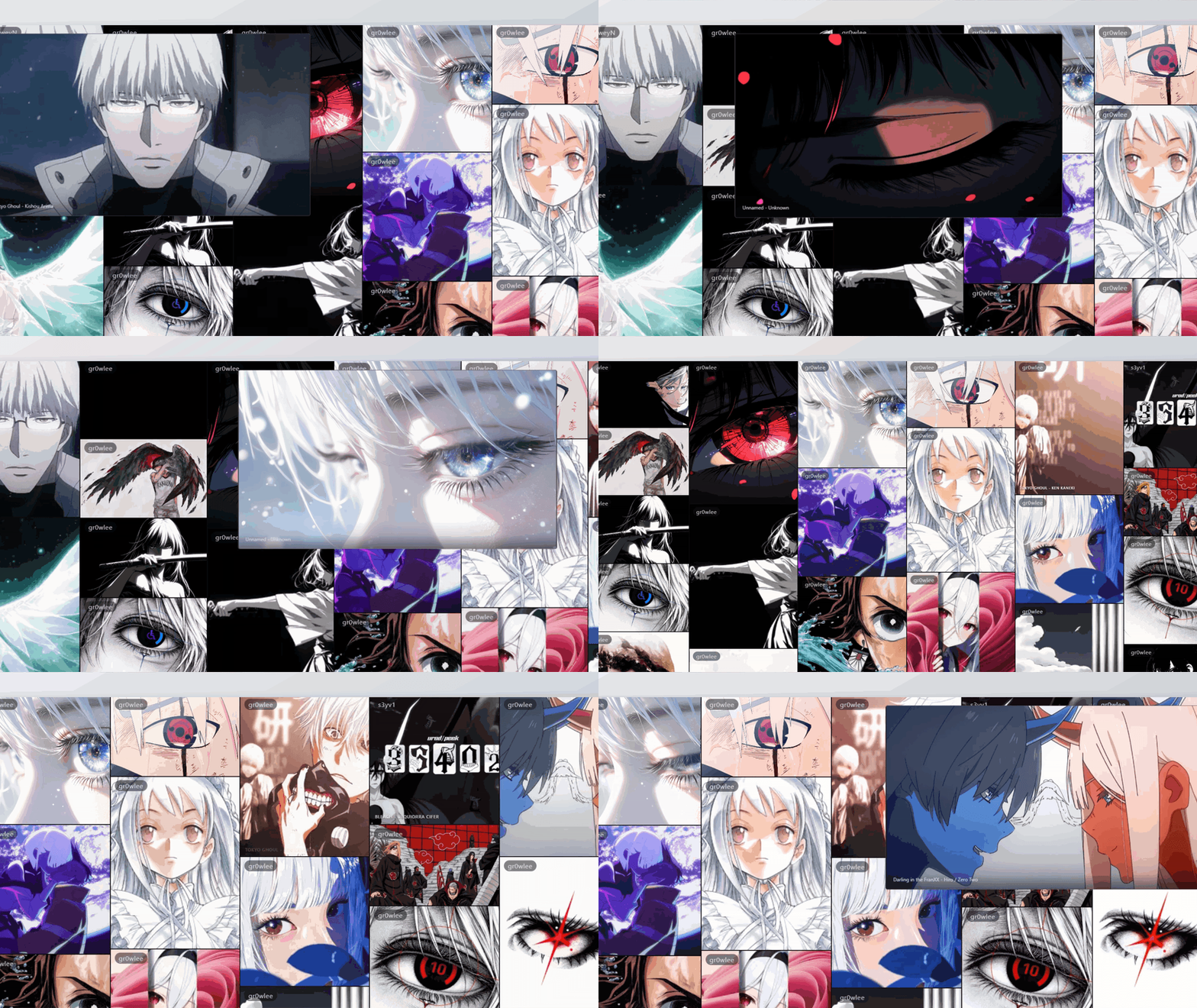
- Open the FACEIT Absolute profile library in the browser where you installed the extension.
- Search by title, author or tags. Open a design and check its preview.
- Select the apply button and confirm the replacement. Wait for the success message.
- Refresh your FACEIT profile and check the result.
Interface recording; newer versions may look different.
Your own image
Open Profile customization → Profile background («Фон профиля»). Select Upload («Загрузить»), or Replace («Заменить») if you already have a background. In the editor on the FACEIT page, choose a file, adjust the crop and confirm saving. A JPG or PNG is a good starting point.
Check the result on your profile. If the upload does not finish, read the editor's message for the reason, such as an unsupported format or a file exceeding the size limit.
04 / Panels and outlines
Adjust panels and outlines
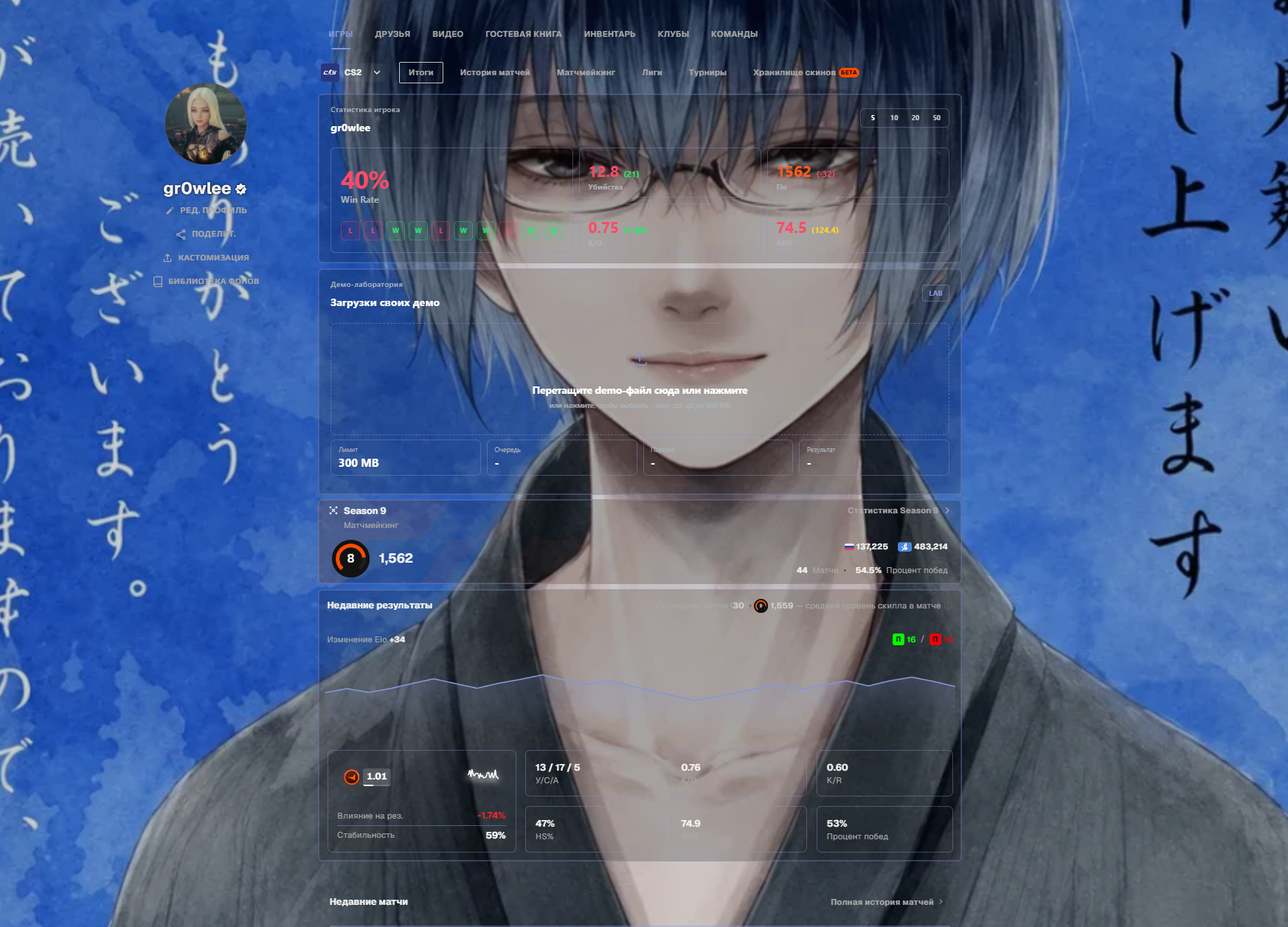
Use the customization settings to adjust panel transparency and outline color and thickness. Hide sections you do not need while keeping the profile easy to use.
After changing settings, check text against both light and dark parts of the image. Reduce panel transparency if the statistics are hard to read.
Good to know
FACEIT background questions
Will other players see my background?
FACEIT Absolute is required to display the styling. Players with the extension can see saved designs; a regular FACEIT page without the extension does not automatically display these changes.
My background is missing. What should I check?
Check that the extension is enabled, the correct FACEIT account is connected and applying the background finished without an error. Refresh your profile. If you installed the extension after opening the library, refresh that tab too. Reconnect FACEIT in the extension if it reports an expired session.
How do I remove or replace a background?
Open Profile background and choose Replace («Заменить») or Delete current background («Удалить текущий фон»). Deleting requires a separate confirmation; your styling settings are retained.
Is this an official FACEIT feature?
FACEIT Absolute is an independent extension and is not affiliated with FACEIT. This guide covers styling through the extension. It does not change match results or player statistics.
Background library
Choose a ready-made background
Open the library, choose a background and check its preview.